


Key Takeaways
- Define what the audience should understand, decide, or do before creating slides.
- Use one clear message per slide and place the most important message early.
- Turn an outline into a story instead of copying every point into a deck.
- Use AI to organize, draft, and revise, while keeping human review in control.
- Check facts, dates, names, visuals, and confidential details before presenting.
A written outline is already the beginning of a presentation. It contains the order, priorities, and main ideas your audience needs. The challenge is turning that structure into slides that are easy to scan, accurate, and useful in the room. A presentation maker with AI can speed up the first draft, but a strong result still starts with a clear purpose and well-organized source material.
AI works best when it receives a focused outline rather than a loose collection of notes. Give it to the audience, the desired outcome, relevant evidence, and any limits on slide count or style. Then treat its output as a draft to refine, not as a final version ready to share.
Why an Outline Can Still Produce a Weak Deck
An outline provides structure, but it is not automatically a presentation. It may contain background details, repeated ideas, research notes, and items that matter to the project but not to the audience. A slide deck is a guided path through the information. It should make priorities visible, explain why the topic matters, and lead to a conclusion or next action.
Common problems include slides packed with text, vague headings such as “Update,” a lack of context, and claims without evidence. Avoid treating the deck like a transcript. Instead, decide what the audience needs now and move supporting details into speaker notes or an appendix.
Step 1: Define the Job of the Presentation
Before asking AI to create anything, write a short brief. Identify the audience, the presentation goal, the action you want listeners to take, the available speaking time, and what they already know. An executive update may need a quick decision and a concise summary. A technical review may need assumptions, methods, limitations, and implementation details.
Step 2: Sort the Outline Into Content Groups
Label each point in the outline so the presentation has a useful content map. Common groups include:
- Context: What led to this work?
- Goal: What outcome matters?
- Evidence: Which facts, examples, or metrics support the message?
- Decisions and risks: What is settled, and what could affect the plan?
- Open questions and next steps: What still needs an answer, owner, or deadline?
For each item, keep the original source, date, owner, and confidence level nearby. This makes verification easier when AI suggests wording that sounds more certain than the source material supports.
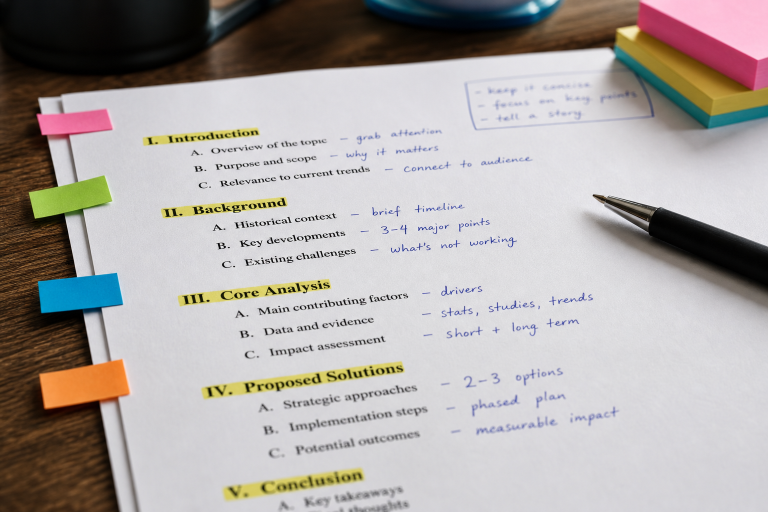
Step 3: Find the Main Story
Give the outline a single narrative sentence before building slides. A practical pattern is Situation, Problem, Evidence, Decision, Action. List the most important changes, group related points, and remove material that does not support the goal. This structure works for project updates, research reviews, budget requests, product plans, and team briefings.
Step 4: Build a Slide-by-Slide Outline
A flexible deck often follows this sequence:
- Title and purpose
- Executive summary or key takeaway
- Current situation and central challenge
- Evidence, findings, or options
- Recommendation or decision needed
- Risks, dependencies, and open questions
- Next steps with owners and dates
- Closing takeaway and requested action
Not every presentation needs every section. Combine slides when the audience needs a quick update, and add detail only when it helps people make a better decision.
Step 5: Write Headlines That State the Point
Each headline should convey the slide’s message without requiring the audience to read every bullet point. Replace “Progress” with “The pilot reached most planned users.” Replace “Risks” with “Vendor timing may affect the launch.” Replace “Next Steps” with “Approval is needed before testing begins.” Clear headlines also make rehearsal easier because they should read like a logical summary of the entire talk.
Step 6: Match Evidence to the Right Visual
Choose visuals because they answer a question, not because the slide needs decoration. Use a timeline for milestones, a bar chart for category comparisons, a line chart for change over time, a process diagram for handoffs, and a comparison list for options. A single large number can work when one metric is the main point. Label charts clearly and avoid visual choices that make small differences look larger than they are.
Step 7: Use AI as a Drafting Partner
AI can summarize an outline, identify decisions and risks, suggest alternative story structures, draft slide headlines, and point out missing information. The ways AI can support productivity tasks also provide useful examples of how drafting and summarization can fit into everyday work.
Review this outline for a presentation to [audience]. Identify the main goal, key decisions, supporting evidence, risks, open questions, and next steps. Create a concise slide outline with one clear message per slide. Flag every claim, number, date, or owner that needs verification.
Ask for several structures when the story is unclear. Then select the version that best fits the audience, rather than accepting the first generated sequence.
Step 8: Keep Slides Short and Speaker Notes Useful
Limit slides to one main idea, use short bullets, define unfamiliar terms, and leave enough white space for the message to stand out.
Put detailed explanations, examples, and transition language in speaker notes. A clean slide is not empty. It simply shows the audience what matters first.
Step 9: Check Accuracy, Privacy, and Context
Confirm every number against its original source. Check names, dates, deadlines, and ownership. Separate facts from estimates, preserve important unresolved issues, and remove information the audience should not see.
Review whether each chart has fair scales and clear labels, and make sure the recommendation follows from the evidence. Helpful material should be created for people with a real purpose, a principle reflected in people-first content guidance.
Step 10: Rehearse for Clarity
Read only the slide headlines in order. If they do not tell a coherent story, revise the structure. Practice within the available time, remove repeated slides, and prepare for likely questions.
A useful final test is asking someone unfamiliar with the project to explain the main takeaway after hearing the presentation.
Common Questions
Can AI turn a rough outline into a presentation?
Yes. It can create a workable first draft, but rough outlines still need review for missing context, repeated points, unsupported claims, and audience fit.
How many slides should the presentation have?
The right number depends on the purpose, time limit, and audience. Every slide should earn its place by adding a distinct idea, decision, or piece of evidence.
Should every outline point appear on a slide?
No. Keep the main argument, evidence, risks, and actions on slides. Move secondary details to notes, backup slides, or the original project record.
Final Checklist
- The audience, purpose, and requested action are clear.
- The main message appears near the beginning.
- Each slide communicates one central idea.
- The evidence supports the claims, and the visuals are accurate.
- Risks, open questions, owners, and deadlines are visible where needed.
- Speaker notes contain details without overcrowding slides.
- Confidential information has been removed.
Conclusion
AI can make presentation creation faster, but it cannot replace judgment about what matters to an audience. Start with a purposeful outline, shape it into a clear story, use visuals that clarify the evidence, and review every important detail.
The result is not just a better-looking deck. It is a presentation that helps people understand the issue and act on it.